
Overview#
What I’m describing is surely not the best method to build a Windows package… but it works and is scriptable (e.g., building it with Jenkins).
Prerequisites#
To proceed, you need to install the following tools on your Windows (build) machine:
- Ruby 1.8.7 or later
- Ruby binaries in your PATH environment variable (rake, ruby and gem will be used)
- InnoSetup 5 (http://www.jrsoftware.org/isinfo.php)
Configure Package Script#
From my GitHub repo you can download the builder scripts which contain a Rakefile and install_gems.bat. The Rakefile is the script you’ll call to execute all the build tasks; install_gems.bat is a batch file packaged into the installer, called during the post-installation step to install all gem dependencies.
Before you can start the build script, check the downloaded Rakefile to make sure all parameters are correct for the build environment you are using.
# set constant values:
LIB_FOLDER = File.expand_path('./lib')
INSTALL_FOLDER = File.expand_path('./install')
ISCC = "C:/Programmi/Inno Setup 5/iscc.exe"
ISS_FILE = "#{INSTALL_FOLDER}/Setup.iss"

APP_TITLE = "Marionette Collective"
EXE_NAME = "mcollective"
EXE_BASENAME = "mcollective"
APP_VERSION = "2.3.2"
In particular you have to check the ISCC variable with the path to your InnoSetup binary file.
Prepare Installation Environment#
To build the desired version of MCollective, you just need to download the MCollective tgz sources from http://downloads.puppetlabs.com/mcollective/, extract the downloaded package into your preferred location, and copy the two previously described files into the sources directory.
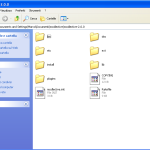
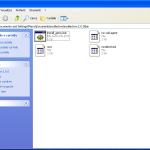
- Rakefile should be copied into the sources root directory (e.g.,
C:\projects\mcollective) - install_gems.bat into the bin subfolder (e.g.,
C:\projects\mcollective\bin)
For example, here’s my MCO source directory:
Build the Package#
Now you are ready to create the installer package. Open a Windows CMD console, move to the MCollective sources folder and execute Rake:
C:\projects\mcollective-2.3.2> rakeIf the compilation worked well, you should have a successful message at the end:
Successful compile (4,547 sec). Resulting Setup program filename is:
C:\projects\mcollective-2.3.2\install\mcollective_Setup.exe
That means you have your installer file in the install subfolder.
Convert to MSI#
The following procedure is surely not the best way to create an MSI Windows package. Maybe in the future I’ll try to convert the build script using the WIX toolset project which creates a real MSI package directly.
Anyway… Using MSI Wrapper you can select the MCollective EXE installer created with InnoSetup and convert it into a simple MSI. On my GitHub repo, in the exe2msi subfolder, you can find two pre-configured MSI Wrapper scripts to create a Silent Installation MSI or a Normal MSI.
All packages created with this method are available at http://repos.mornati.net/mcollective/.