
After the problem I had on my Nexus 7 and the wipe data test, my tablet was always stuck on the boot image. So, the second thing (and probably the last) I could try, was a complete reinstallation of the ROM.
Reinstall Stock ROM#
Before proceeding, you need a computer with the Android SDK installed and the platform-tools folder in your PATH (so you can run fastboot from anywhere).
- Download the factory image for your Nexus device from the Google Developers site. I assume the same process should work for any other device if you can find the factory ROM.
- Reboot your device into fastboot mode (as I described here).
- Enter the ROM folder you downloaded, where you should find the script to reinstall it (flash-all.sh or flash-all.bat).
- Execute the script and you should see a question asking you to unlock the boot loader (you need to unlock it to install the stock ROM).
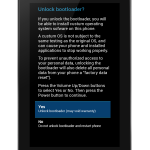
- On your computer screen, you can follow the ROM installation log. When the procedure ends (if no errors occurred), your device will boot automatically.
Relock Bootloader#
For security reasons, as suggested by Google too, it’s better to relock your boot loader (you can always unlock it again if needed).
- Reboot the device in fastboot mode.
- From your computer, execute
fastboot oem lock:
MacBook-Pro-di-Marco:nakasi-jwr66y mmornati$ fastboot oem lock
< waiting for device >
...
(bootloader) Bootloader is locked now.
OKAY [  1.447s]
finished. total time: 1.447s
Now you have a completely new device (at least software side).