# SSH command line store for OSx and Linux like mRemote
# SSH command line store for OSx and Linux like mRemote
# Why this project?
Using an OSx (or Linux) environment, when you need to manage a lot of servers it could be difficult to remember all the hostnames or IP addresses.
On the Windows system, I used to use mRemote, but I didn’t find anything similar on OSx/Linux.
That’s the idea to create a simple CLI program allowing us to store all the connection information using tags (like mRemote does).
# How to install the project
It’s a NodeJS project and actually it is not available on the npm repository. So, the better way is downloading sources from GitHub and install globally from sources:
```
git clone https://github.com/mmornati/ssh2-keeper.git cd ssk-keeper npm install -g .
```

The ssh2-keeper is now available as `sk` command on your system.
# Configuration
After the global installation, the configuration folder is into the global node modules installation folder.
You can check which one is on your system using:

On my system, for example, the global folder is _/usr/local/lib/node_modules_ which means, after the ssh2-keeper installation, the configuration folder will be `/usr/local/lib/node_modules/ssh2-keeper/config`.
Inside this latest one, you will find a _default.json_ file and you must configure the database folder.
```
{ "db_path": "/Users/mmornati/ssh2-keeper", "server_collection": "servers", "tag_collection": "tags", "default_username": "mmornati", "show_ssh_command": true }
```
# Usage
If you globally installed the module, using `sk --help` allow you to retrieve the script documentation.
```
sk --help
Successfully connected to : ./db
USAGE: node sk [OPTION1] [OPTION2]... arg1 arg2...
The following options are supported:
-v, --verbose Show verbose log
-t, --tag Tag(s) to allow you to find server (multiple)
-h, --hostname Hostname of your server
-a, --admin_server If you need to connect to an Admin server to reach your target. Ex: ssh -tt pi@192.168.0.101 ssh -tt pi2@192.168.0.102
-i, --ip Server IP address.
-u, --username Username to connect to your server. If empty the one in configuration file be used
-o, --operation One of ADD, SEARCH or DELETE
```
# Add a new server
```
sk -o add -h server35.mornati.net -i 192.168.100.35 -t jenkins -t slave -t slave04 -t integration
```
This will add a server (if the hostname it is not already present with the same hostname) with the provided parameters and tags.
With a line like the previous one we’ve seen, you can also update server parameters:
```
sk -o add -h server35.mornati.net -i 192.168.100.39
```
In this way, for example, if the server was already present into the database, you will update the IP address. All other information already present into the database will be kept.
In the same way, you can add a new tag to the server
```
sk -o add -h server35.mornati.net -t mypersonalserver
```
will add a new tag to the server (if not already present).

# Search
The most used function will surely be the search one. You can search a server using the hostname, which will provide you the list of data known about the server:
```
sk -o search -h server20.mornati.net Successfully connected to : ./db { hostname: 'server20.mornati.net', ip: '192.168.100.20', tags: [ 'www', 'front', 'front02', 'preprod', 'france' ], _id: '15404e5a1b134cb289ffae0cc89968ca' } Added to clipboard
```

Or you can search using tags: it will return you the intersection between all provided tags.
```
sk -o search -t prod -t front -t italy Successfully connected to : ./db ssh mmornati@server1.mornati.net ssh mmornati@server2.mornati.net
```
It will return you all the ‘front’ and ‘prod’ servers for ‘Italy’ (servers must have the 3 tags to be into the list).
When the list gives you a single result, the ssh command will be directly in your clipboard: with a simple **CTRL+V** you can use it! :)
## Search improved
As I said before, this one is the most used function, I created an ‘undocumented’ function allowing you to search in this way:
```
sk search prod front01 italy Successfully connected to : ./db ssh mmornati@server1.mornati.net Added to clipboard
```
So, without providing the option name. In this case:
* the first argument is the operation (SEARCH, ADD)
* if it is SEARCH from the second arguments all others will be considered as tags
* if it is ADD the second argument is the hostname and all others are tags


# Tips
To initialize my work environment database I used ‘spreadsheet’ (yes, it is amazing, but it was quick!).

I just copied hostnames and IPs I had on another document, and then, using the spreadsheet’s CONCATENATE function I was able to generate the list of ‘ADD’ commands.
# Server with proxy
If you are using an admin server between your PC and the target server (for example on the configuration environment) you can store this information into the database ( _admin_server_) and the ssh command sent by the ssh2-keeper will be ready to use.
```
sk search preprod france front02 Successfully connected to : ./db ssh -tt mmornati@adm01.mornati.net ssh -tt mmornati@server20.mornati.net Added to clipboard
```
# Next Steps
* Better management of Users (per server and tag)
* Add support to ssh_key per server and tags
* What you need to improve it :)
_Originally published at_ [_https://blog.mornati.net_](https://blog.mornati.net/ssh-command-line-store-for-osx-and-linux-like-mremote/) _on October 9, 2016._
 The ssh2-keeper is now available as `sk` command on your system.
# Configuration
After the global installation, the configuration folder is into the global node modules installation folder.
You can check which one is on your system using:

The ssh2-keeper is now available as `sk` command on your system.
# Configuration
After the global installation, the configuration folder is into the global node modules installation folder.
You can check which one is on your system using:

 On my system, for example, the global folder is _/usr/local/lib/node_modules_ which means, after the ssh2-keeper installation, the configuration folder will be `/usr/local/lib/node_modules/ssh2-keeper/config`.
Inside this latest one, you will find a _default.json_ file and you must configure the database folder.
```
{ "db_path": "/Users/mmornati/ssh2-keeper", "server_collection": "servers", "tag_collection": "tags", "default_username": "mmornati", "show_ssh_command": true }
```
# Usage
If you globally installed the module, using `sk --help` allow you to retrieve the script documentation.
```
sk --help
Successfully connected to : ./db
USAGE: node sk [OPTION1] [OPTION2]... arg1 arg2...
The following options are supported:
-v, --verbose Show verbose log
-t, --tag Tag(s) to allow you to find server (multiple)
-h, --hostname Hostname of your server
-a, --admin_server If you need to connect to an Admin server to reach your target. Ex: ssh -tt pi@192.168.0.101 ssh -tt pi2@192.168.0.102
-i, --ip Server IP address.
-u, --username Username to connect to your server. If empty the one in configuration file be used
-o, --operation One of ADD, SEARCH or DELETE
```
# Add a new server
```
sk -o add -h server35.mornati.net -i 192.168.100.35 -t jenkins -t slave -t slave04 -t integration
```
This will add a server (if the hostname it is not already present with the same hostname) with the provided parameters and tags.
With a line like the previous one we’ve seen, you can also update server parameters:
```
sk -o add -h server35.mornati.net -i 192.168.100.39
```
In this way, for example, if the server was already present into the database, you will update the IP address. All other information already present into the database will be kept.
In the same way, you can add a new tag to the server
```
sk -o add -h server35.mornati.net -t mypersonalserver
```
will add a new tag to the server (if not already present).

On my system, for example, the global folder is _/usr/local/lib/node_modules_ which means, after the ssh2-keeper installation, the configuration folder will be `/usr/local/lib/node_modules/ssh2-keeper/config`.
Inside this latest one, you will find a _default.json_ file and you must configure the database folder.
```
{ "db_path": "/Users/mmornati/ssh2-keeper", "server_collection": "servers", "tag_collection": "tags", "default_username": "mmornati", "show_ssh_command": true }
```
# Usage
If you globally installed the module, using `sk --help` allow you to retrieve the script documentation.
```
sk --help
Successfully connected to : ./db
USAGE: node sk [OPTION1] [OPTION2]... arg1 arg2...
The following options are supported:
-v, --verbose Show verbose log
-t, --tag Tag(s) to allow you to find server (multiple)
-h, --hostname Hostname of your server
-a, --admin_server If you need to connect to an Admin server to reach your target. Ex: ssh -tt pi@192.168.0.101 ssh -tt pi2@192.168.0.102
-i, --ip Server IP address.
-u, --username Username to connect to your server. If empty the one in configuration file be used
-o, --operation One of ADD, SEARCH or DELETE
```
# Add a new server
```
sk -o add -h server35.mornati.net -i 192.168.100.35 -t jenkins -t slave -t slave04 -t integration
```
This will add a server (if the hostname it is not already present with the same hostname) with the provided parameters and tags.
With a line like the previous one we’ve seen, you can also update server parameters:
```
sk -o add -h server35.mornati.net -i 192.168.100.39
```
In this way, for example, if the server was already present into the database, you will update the IP address. All other information already present into the database will be kept.
In the same way, you can add a new tag to the server
```
sk -o add -h server35.mornati.net -t mypersonalserver
```
will add a new tag to the server (if not already present).

 # Search
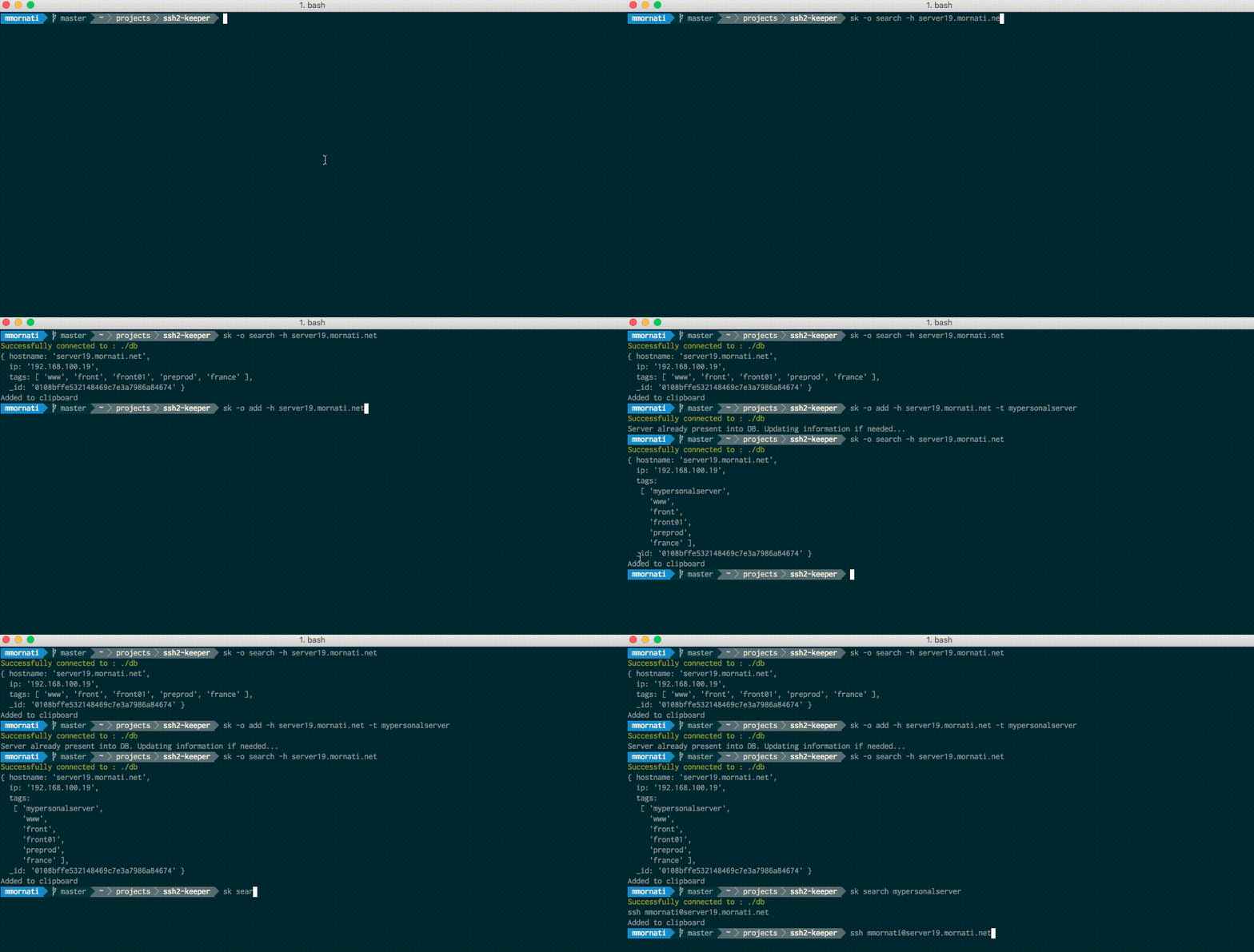
The most used function will surely be the search one. You can search a server using the hostname, which will provide you the list of data known about the server:
```
sk -o search -h server20.mornati.net Successfully connected to : ./db { hostname: 'server20.mornati.net', ip: '192.168.100.20', tags: [ 'www', 'front', 'front02', 'preprod', 'france' ], _id: '15404e5a1b134cb289ffae0cc89968ca' } Added to clipboard
```

# Search
The most used function will surely be the search one. You can search a server using the hostname, which will provide you the list of data known about the server:
```
sk -o search -h server20.mornati.net Successfully connected to : ./db { hostname: 'server20.mornati.net', ip: '192.168.100.20', tags: [ 'www', 'front', 'front02', 'preprod', 'france' ], _id: '15404e5a1b134cb289ffae0cc89968ca' } Added to clipboard
```

 Or you can search using tags: it will return you the intersection between all provided tags.
```
sk -o search -t prod -t front -t italy Successfully connected to : ./db ssh mmornati@server1.mornati.net ssh mmornati@server2.mornati.net
```
It will return you all the ‘front’ and ‘prod’ servers for ‘Italy’ (servers must have the 3 tags to be into the list).
When the list gives you a single result, the ssh command will be directly in your clipboard: with a simple **CTRL+V** you can use it! :)
## Search improved
As I said before, this one is the most used function, I created an ‘undocumented’ function allowing you to search in this way:
```
sk search prod front01 italy Successfully connected to : ./db ssh mmornati@server1.mornati.net Added to clipboard
```
So, without providing the option name. In this case:
* the first argument is the operation (SEARCH, ADD)
* if it is SEARCH from the second arguments all others will be considered as tags
* if it is ADD the second argument is the hostname and all others are tags

Or you can search using tags: it will return you the intersection between all provided tags.
```
sk -o search -t prod -t front -t italy Successfully connected to : ./db ssh mmornati@server1.mornati.net ssh mmornati@server2.mornati.net
```
It will return you all the ‘front’ and ‘prod’ servers for ‘Italy’ (servers must have the 3 tags to be into the list).
When the list gives you a single result, the ssh command will be directly in your clipboard: with a simple **CTRL+V** you can use it! :)
## Search improved
As I said before, this one is the most used function, I created an ‘undocumented’ function allowing you to search in this way:
```
sk search prod front01 italy Successfully connected to : ./db ssh mmornati@server1.mornati.net Added to clipboard
```
So, without providing the option name. In this case:
* the first argument is the operation (SEARCH, ADD)
* if it is SEARCH from the second arguments all others will be considered as tags
* if it is ADD the second argument is the hostname and all others are tags

 

 # Tips
To initialize my work environment database I used ‘spreadsheet’ (yes, it is amazing, but it was quick!).

# Tips
To initialize my work environment database I used ‘spreadsheet’ (yes, it is amazing, but it was quick!).

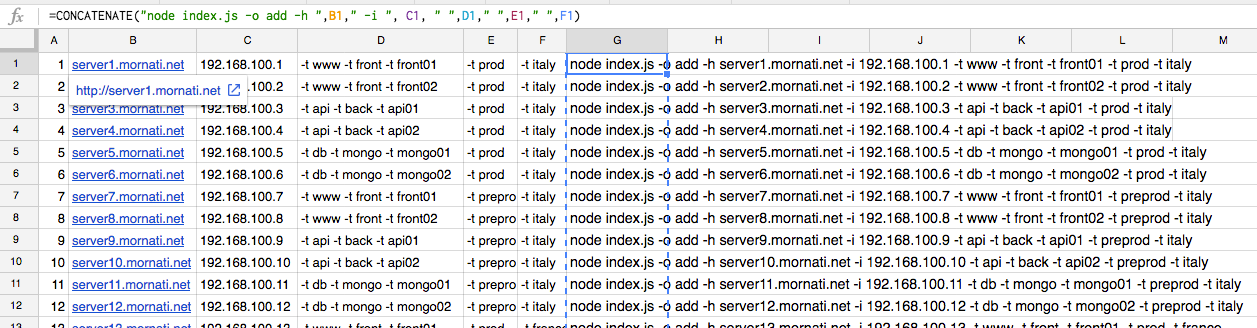 I just copied hostnames and IPs I had on another document, and then, using the spreadsheet’s CONCATENATE function I was able to generate the list of ‘ADD’ commands.
# Server with proxy
If you are using an admin server between your PC and the target server (for example on the configuration environment) you can store this information into the database ( _admin_server_) and the ssh command sent by the ssh2-keeper will be ready to use.
```
sk search preprod france front02 Successfully connected to : ./db ssh -tt mmornati@adm01.mornati.net ssh -tt mmornati@server20.mornati.net Added to clipboard
```
# Next Steps
* Better management of Users (per server and tag)
* Add support to ssh_key per server and tags
* What you need to improve it :)
_Originally published at_ [_https://blog.mornati.net_](https://blog.mornati.net/ssh-command-line-store-for-osx-and-linux-like-mremote/) _on October 9, 2016._
I just copied hostnames and IPs I had on another document, and then, using the spreadsheet’s CONCATENATE function I was able to generate the list of ‘ADD’ commands.
# Server with proxy
If you are using an admin server between your PC and the target server (for example on the configuration environment) you can store this information into the database ( _admin_server_) and the ssh command sent by the ssh2-keeper will be ready to use.
```
sk search preprod france front02 Successfully connected to : ./db ssh -tt mmornati@adm01.mornati.net ssh -tt mmornati@server20.mornati.net Added to clipboard
```
# Next Steps
* Better management of Users (per server and tag)
* Add support to ssh_key per server and tags
* What you need to improve it :)
_Originally published at_ [_https://blog.mornati.net_](https://blog.mornati.net/ssh-command-line-store-for-osx-and-linux-like-mremote/) _on October 9, 2016._