
Overview#
By default, when you configure a Google account on your iOS device, only your default calendar gets synchronized with iPhone/iPad. But if you have, like me, configured and imported some other calendars that are displayed on your gcal, you surely would have them on your portable device too.
For example, in my account, I’ve imported my Google Apps (professional) calendar, French/Italian holidays calendar, and some others.
The Problem#
To configure what you want to have on your iOS device too, you should visit the mobile sync page (from your device):
If you have your Google account with a language different from English (I just tested with French and Italian, so maybe some other languages work without this tip), you will see an “error” page:
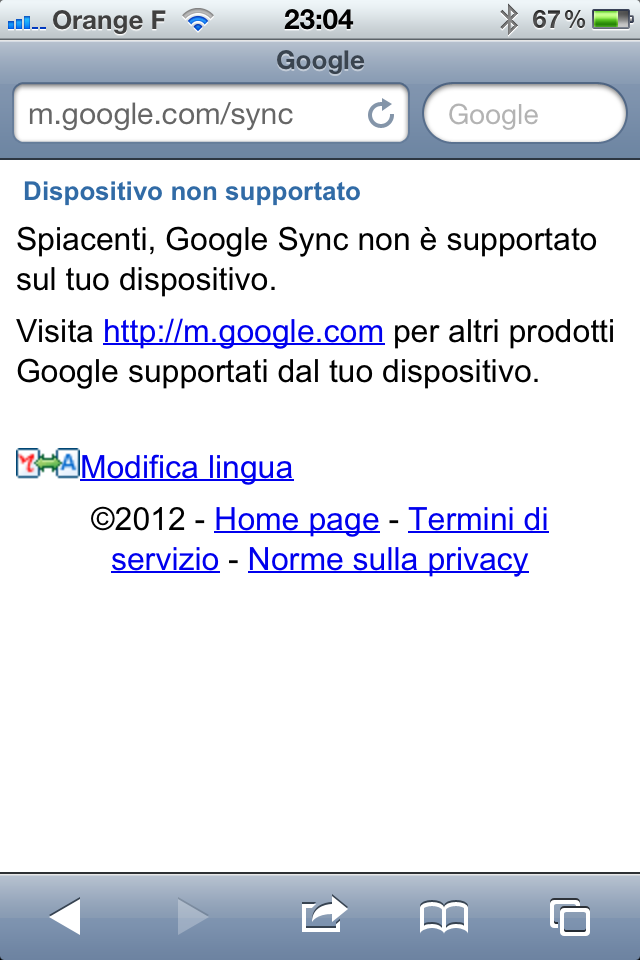
The error page says google sync is not supported on your device. And even if you retry to refresh the url, you always get the error. As we already (partially) said, the problem is not your device but the language used to show the page.
The Solution (Language Workaround)#
If you click on “change language” (naturally the link is displayed in your language, in the image it is “modifica lingua”) and select English US you can see the real sync page.
Step-by-Step#
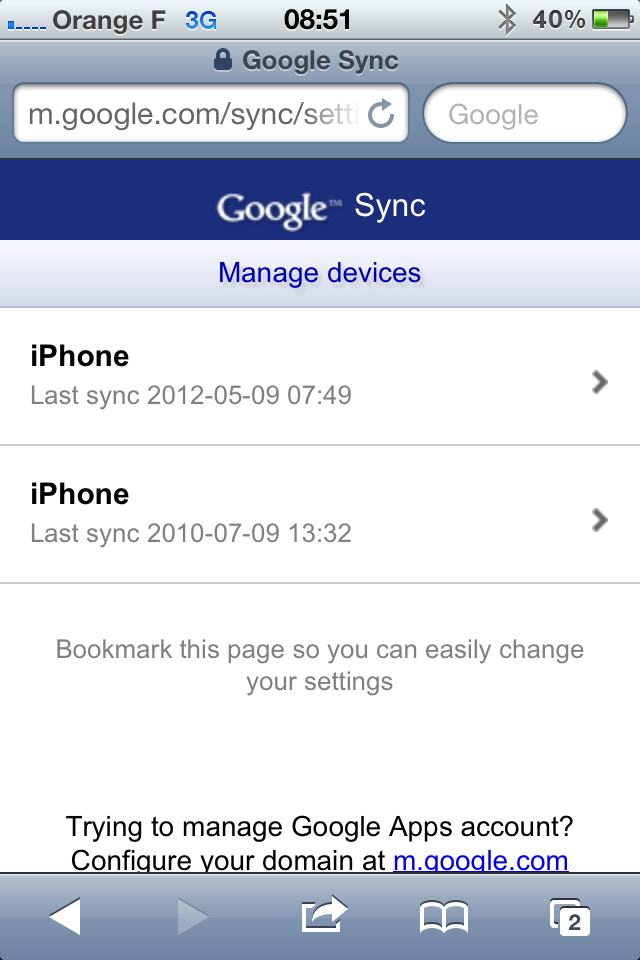
In my example, I’ve already two devices configured with my sync account, so on the page I can see sync devices and I can select the one I’d like to configure. If you have never configured your device you should directly access the config page.
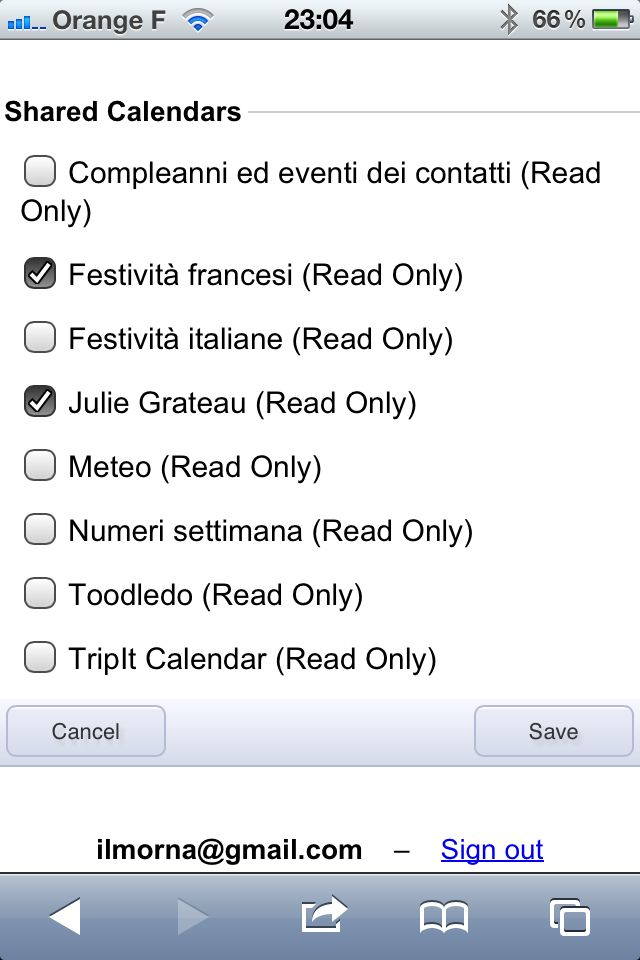
Here you just need to check the calendars you’d like to synchronize to your iOS device and save the changes.
You can check if everything worked by accessing the device calendar configuration app:
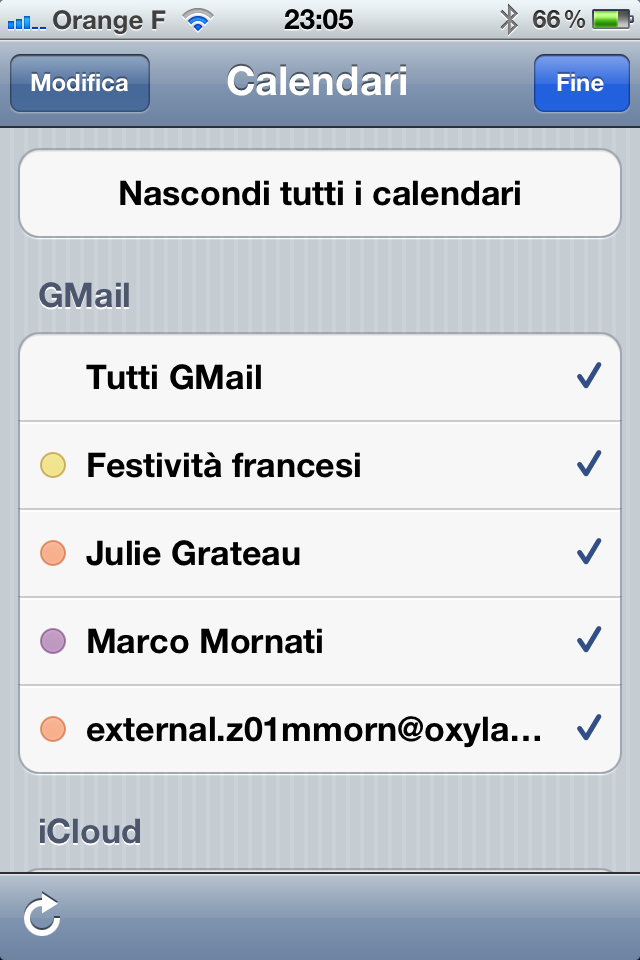
Completed!
Enjoy your sync.