

Achieving Zero-Downtime Deployments on Coolify: A Journey from Monolith to Decoupled Architecture

Search for a command to run...
No comments yet. Be the first to comment.
and why it took two completely different approaches to get it right.

Following the Trail from the Cultura & FFT Breaches to SendGrid Abuse

Beyond the single-model myth: Implementing intelligent multi-agent routing and DAG workflows with AI Dispatch.
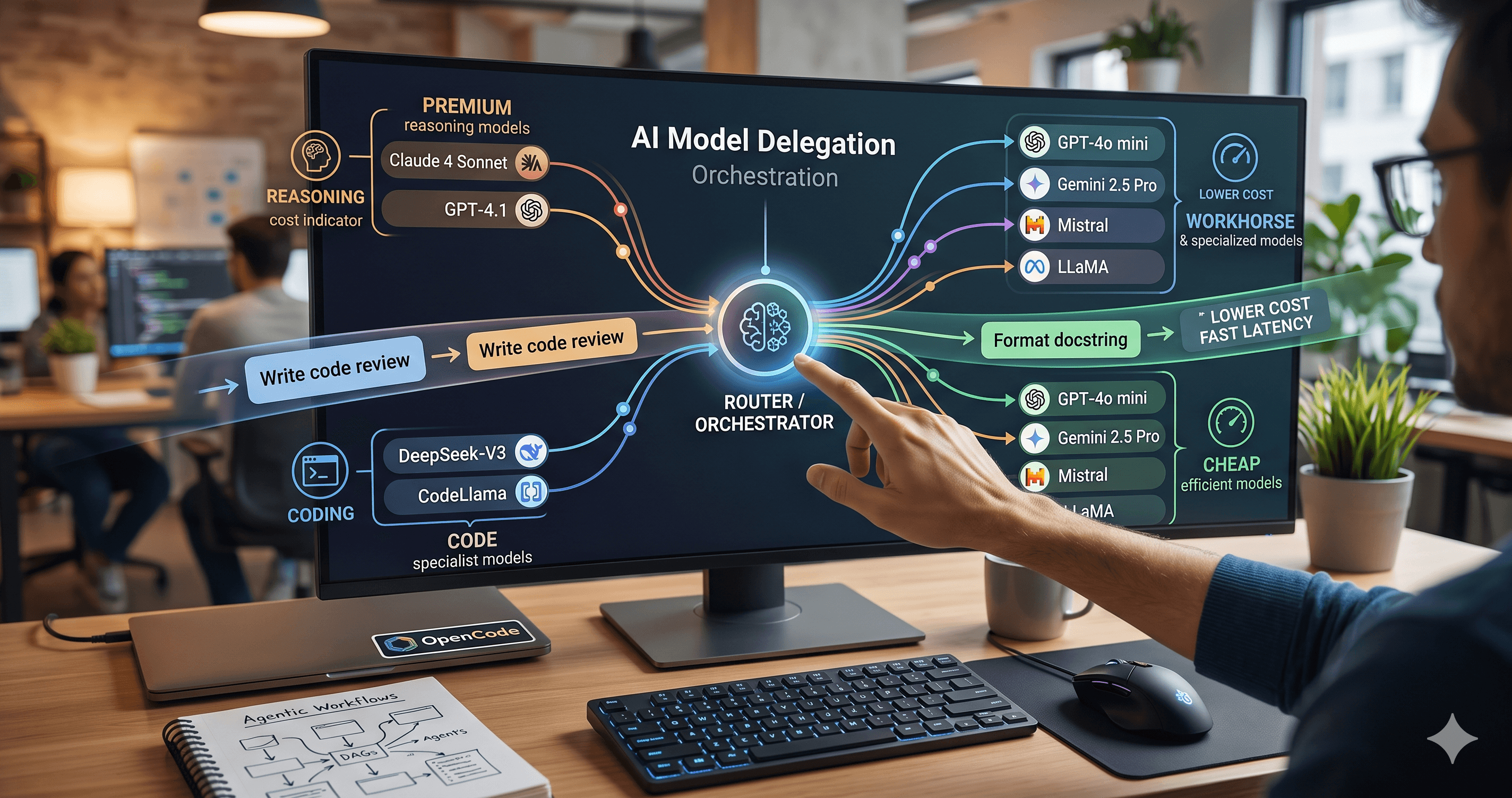
Introduction: The Black Box of AI Code Generation When you ask GitHub Copilot to write a function, refactor a module, or explain a complex piece of code, the response you get is the output of a probab

How we built a proxy-driven, benchmark-validated ecosystem for LLMs, and why your company's MCP servers and SKILLS should come with unit tests
If you've ever deployed a web application, you know the pain: push a small frontend change, wait for the entire platform to restart, and watch your users experience downtime. For the Cyber Code Academy platform, an interactive Python learning platform with real-time competitions, this was the reality. Every deployment meant 2-3 minutes of complete outage, even for the smallest UI tweak.
The culprit? A monolithic Docker Compose setup where every service was tightly coupled. Change the frontend? Restart the database. Update the backend? Restart everything. It was frustrating, inefficient, and frankly, unprofessional.
I decided it was time for a something different and more professional, even for a free test website. I migrated from a single docker-compose.prod.yml file orchestrating everything to a decoupled, three-tier architecture that enables true zero-downtime deployments on Coolify. The result? I can now deploy frontend changes without touching the database, update the backend independently, and keep the infrastructure services running 24/7 (almost 😂)
In this post, I'll walk you through our journey: the problems we faced, the architecture we designed, and how we implemented it. Whether you're running a similar setup or just curious about zero-downtime deployments, I hope this experience helps you avoid the pitfalls I encountered.

Let me start by explaining what we had and why it was problematic.
In our original setup, we had a single docker-compose.prod.yml file that defined all our services: PostgreSQL database, Redis cache, LibreTranslate translation service, our FastAPI backend, and our Next.js frontend. When Coolify detected a change (like a new commit to the repository), it would:
Stop all containers
Rebuild any changed services
Start all containers again
Wait for health checks to pass
This is what I call a "monolithic deployment"—everything is bundled together, and everything restarts together. It's simple to understand, but it comes with significant drawbacks.

The real-world impact was brutal. Here's what happened during a typical deployment:
Scenario 1: Frontend UI Fix
I push a small CSS fix to improve button styling
Coolify detects the change and triggers a redeploy
All services stop: database, Redis, backend, frontend
Database restarts (unnecessary, but required by the monolith)
Redis restarts (unnecessary)
Backend restarts (unnecessary)
Frontend rebuilds and restarts
Total downtime: 3-4 minutes
Users see "Service Unavailable" errors
Scenario 2: Backend API Update
I add a new endpoint for user profiles
Same process: everything stops, everything restarts
Database connections are dropped mid-request
Active user sessions are lost
Total downtime: 4-5 minutes
Scenario 3: Infrastructure Change
I need to update PostgreSQL configuration
This is the only scenario where a full restart makes sense
But even here, we're restarting the frontend unnecessarily
Let me break down the specific problems we faced:
1. Database Restarts on Frontend Changes The most frustrating issue: updating a React component would cause our PostgreSQL database to restart. This made no sense—the database had nothing to do with the frontend change. But because everything was in one Docker Compose file, Coolify treated it as one unit.
2. Long Outage Windows Our deployments took 2-5 minutes on average. During this time:
Users couldn't log in
Active sessions were lost
API requests failed
Real-time features (like our coding battles) disconnected
3. No Independent Updates There was no way to update just the frontend or just the backend. Every change required a full platform restart. This slowed down our development cycle and made us hesitant to deploy small fixes.
4. Resource Waste We were restarting services that didn't need to restart. PostgreSQL, Redis, and LibreTranslate are stable services that rarely change. Restarting them on every deployment was wasteful and risky.
5. Deployment Anxiety Because every deployment meant downtime, we started batching changes. Instead of deploying small fixes immediately, we'd wait until we had multiple changes. This meant bugs stayed in production longer than necessary. Usually to led user play with the pygame, this meant night deployment 😩 Welcome back in the 80s

Before diving into the solution, let me explain the architecture concepts we're working with. If you're already familiar with microservices and container orchestration, feel free to skip ahead. But I want to make sure everyone understands the "why" behind our decisions.
Instead of one monolithic deployment, we split our platform into three distinct layers, each with different characteristics and update frequencies:
Infrastructure Layer: Stable services that rarely change
Backend Layer: API application that changes moderately
Frontend Layer: User interface that changes frequently
This separation allows us to update each layer independently, which is the key to zero-downtime deployments.

The infrastructure layer contains services that form the foundation of our platform. These services are stable, well-tested, and rarely need updates.
PostgreSQL Database
Stores all application data: users, challenges, submissions, battles
Rarely changes: maybe a configuration tweak once a quarter
Critical: if it goes down, the entire platform is unusable
Resource-intensive: needs consistent memory and CPU
Redis Cache
Handles session storage and leaderboard caching
Ephemeral data: can be rebuilt if needed
Fast: restarts quickly, but still unnecessary to restart on every deployment
Lightweight: minimal resource usage
LibreTranslate
Provides automatic translation for our international users
Pre-loaded models: takes time to start up (60-120 seconds)
Stable: we update it maybe once a year
Resource-intensive: loads language models into memory
Executor Builder
Builds the Docker image used for code execution
Build-only service: creates an image but doesn't run as a container
Critical for our code execution features
Only needs to rebuild when we change security policies or execution environment
Why These Rarely Change These services are infrastructure—they're the foundation, not the application. Think of them like the foundation of a house: you don't rebuild the foundation when you repaint the walls. Similarly, we don't need to restart the database when we update the frontend.
The backend layer contains our FastAPI application—the brain of our platform.
FastAPI Application
Handles all API logic: authentication, challenge validation, battle management
Changes frequently: new features, bug fixes, performance improvements
Depends on Infrastructure: needs database and Redis to function
Stateless: can be scaled horizontally (run multiple instances)
Key Characteristics
Updates weekly or bi-weekly as we add features
Needs to connect to database and Redis (via container names)
Requires Docker socket access for code execution features
Has health checks to ensure it's ready before accepting traffic
Why It's Separate The backend changes more frequently than infrastructure but less frequently than the frontend. By separating it, we can:
Deploy backend updates without touching the database
Scale backend independently
Roll back backend changes without affecting infrastructure
The frontend layer contains our Next.js application—what users see and interact with.
Next.js Application
Serves the user interface: dashboards, challenge browser, battle arena
Changes most frequently: UI improvements, bug fixes, new pages
Depends on Backend: makes API calls to the backend
Stateless: can be scaled horizontally
Key Characteristics
Updates multiple times per week (sometimes daily)
Only needs the backend API URL to function
Builds at deployment time (static assets generated during Docker build)
Has health checks to ensure it's serving pages correctly
Why It's Separate The frontend changes the most frequently. By separating it:
We can deploy UI fixes instantly without database restarts
Users see updates faster
We can A/B test different frontend versions
Frontend developers can deploy independently

All three layers communicate over a shared Docker network called cybercodeacademy-proxy. This is crucial for the architecture to work.
Container Name Resolution Docker provides DNS-based service discovery. When services are on the same network, they can find each other by container name:
Backend finds database at: cybercodeacademy-db
Backend finds Redis at: cybercodeacademy-redis
Backend finds translator at: cybercodeacademy-translate
Frontend finds backend at: configured via environment variable (domain or internal DNS)
Why This Matters Instead of using localhost or IP addresses (which change), we use container names. Docker's internal DNS resolves these names to the correct container IPs, even when containers restart or move to different hosts.
External Network The cybercodeacademy-proxy network is marked as external: true, meaning it exists outside of any single Docker Compose file. This allows:
Infrastructure services (from docker-compose.infra.yaml) to join the network
Backend service (from Coolify) to join the network
Frontend service (from Coolify) to join the network
All services to communicate with each other
This is the glue that holds our decoupled architecture together.
Now that we understand the architecture, let's dive into how we implemented it. The migration involved three main changes: restructuring our files, configuring Coolify resources, and setting up the network.
The first step was to split our single docker-compose.prod.yml into separate, focused files.
Before:
cyber-code-academy/
├── docker-compose.prod.yml    ← Everything in one file
├── backend/
│   └── Dockerfile
└── frontend/
    └── Dockerfile
After:
cyber-code-academy/
├── docker-compose.infra.yaml  ← Infrastructure only
├── docker-compose.dev.yml      ← Local development (full stack)
├── docker-compose.prod.yml     ← DEPRECATED (kept for reference)
├── backend/
│   └── Dockerfile              ← Standalone backend image
└── frontend/
    └── Dockerfile              ← Standalone frontend image
docker-compose.infra.yaml This file contains only the infrastructure services:
PostgreSQL (cybercodeacademy-db)
Redis (cybercodeacademy-redis)
LibreTranslate (cybercodeacademy-translate)
Executor Builder (builds the executor image)
Here's a simplified version of what it looks like:
services:
  app-db:
    image: postgres:15-alpine
    container_name: my-db
    restart: always
    environment:
      POSTGRES_USER: ${POSTGRES_USER}
      POSTGRES_PASSWORD: ${POSTGRES_PASSWORD}
      POSTGRES_DB: ${POSTGRES_DB}
    volumes:
      - postgres_data:/var/lib/postgresql/data
    networks:
      - cybercodeacademy-proxy
    # ... health checks, resource limits, etc.

  redis:
    image: redis:7-alpine
    container_name: my-redis
    restart: always
    networks:
      - cybercodeacademy-proxy
    # ... configuration

  libretranslate:
    image: libretranslate/libretranslate:latest
    container_name: my-translate
    restart: always
    networks:
      - cybercodeacademy-proxy
    # ... configuration

networks:
  cybercodeacademy-proxy:
    external: true
    name: ${PROXY_NETWORK:-coolify}
Notice that:
All services use the same external network
Container names are explicit (for DNS resolution)
No backend or frontend services—those are deployed separately
Backend Dockerfile The backend Dockerfile remains mostly the same, but we ensure it works with different build contexts:
FROM python:3.13-slim

# Build context can be repository root (.) or backend directory (/backend)
ARG SOURCE_PATH=backend/
ARG REQUIREMENTS_PATH=backend/

WORKDIR /app

# Install dependencies
COPY ${REQUIREMENTS_PATH}requirements.txt ./requirements.txt
RUN pip install --no-cache-dir -r requirements.txt

# Copy application code
COPY --chown=appuser:appgroup ${SOURCE_PATH} /app/

# Health check
HEALTHCHECK --interval=30s --timeout=10s --start-period=10s --retries=3 \
    CMD curl -f http://localhost:8000/ || exit 1

# Start application
CMD ["uvicorn", "app.main:app", "--host", "0.0.0.0", "--port", "8000"]
Frontend Dockerfile The frontend uses a multi-stage build for optimization:
# Stage 1: Dependencies
FROM node:20-alpine AS deps
WORKDIR /app
COPY frontend/package.json frontend/pnpm-lock.yaml* ./
RUN corepack enable pnpm && pnpm install --frozen-lockfile

# Stage 2: Builder
FROM node:20-alpine AS builder
WORKDIR /app
COPY --from=deps /app/node_modules ./node_modules
COPY frontend/ .
ENV NEXT_PUBLIC_API_URL=${PUBLIC_API_URL}
RUN pnpm build

# Stage 3: Runner
FROM node:20-alpine AS runner
WORKDIR /app
COPY --from=builder /app/.next/standalone ./
COPY --from=builder /app/.next/static ./.next/static
EXPOSE 3000
CMD ["node", "server.js"]
The key point: both Dockerfiles are designed to work independently, without requiring a full Docker Compose orchestration.

The magic happens in Coolify, where we configure three separate resources.
Type: Docker Compose Purpose: Deploy stable infrastructure services File: docker-compose.infra.yaml
Configuration Steps:
Create a new Coolify resource
Select "Docker Compose" as the type
Upload docker-compose.infra.yaml
Set environment variables:
 POSTGRES_USER=pguser
 POSTGRES_PASSWORD=<strong-password>
 POSTGRES_DB=my-db
 PROXY_NETWORK=cybercodeacademy-proxy
 EXECUTOR_IMAGE_NAME=my-executor
Configure the external network: cybercodeacademy-proxy
Deploy
Key Points:
This resource deploys once and rarely updates
All infrastructure services run here
The executor image is built automatically
Network is external, shared with other resources
Type: Public Repository Purpose: Deploy the FastAPI backend independently Repository: mmornati/cyber-code-academyDockerfile: backend/DockerfileBuild Context: /backend (backend directory)
Configuration Steps:
Create a new Coolify resource
Select "Public Repository"
Connect GitHub repository: mmornati/cyber-code-academy
Set Dockerfile path: backend/Dockerfile
Set build context: /backend
Enable auto-redeploy on commits
Configure external network: cybercodeacademy-proxy
Set environment variables:
 DATABASE_URL=postgresql+asyncpg://pguser:<password>@mydb-db:5432/mydb
 REDIS_URL=redis://my-redis:6379
 JWT_SECRET=<secret>
 JWT_REFRESH_SECRET=<refresh-secret>
 ENVIRONMENT=production
 EXECUTOR_IMAGE_NAME=my-executor
 DOCKER_HOST=unix:///var/run/docker.sock
 LIBRETRANSLATE_URL=http://my-translate:5000
 # ... other variables
Deploy
Key Points:
Database URL uses container name (cybercodeacademy-db), not localhost
Redis URL uses container name (cybercodeacademy-redis)
Backend can start without executor image (it will build it if missing)
Health check: / endpoint must return 200 OK
Type: Public Repository Purpose: Deploy the Next.js frontend independently Repository: mmornati/cyber-code-academyDockerfile: frontend/DockerfileBuild Context: / (repository root)
Configuration Steps:
Create a new Coolify resource
Select "Public Repository"
Connect GitHub repository: mmornati/cyber-code-academy
Set Dockerfile path: frontend/Dockerfile
Set build context: / (repository root)
Enable auto-redeploy on commits
Configure external network: cybercodeacademy-proxy
Set environment variables:
 NEXT_PUBLIC_API_URL=https://api.yourdomain.com
 NEXT_PUBLIC_WS_URL=https://api.yourdomain.com
 NODE_ENV=production
Configure Traefik routing (if using Coolify's Traefik)
Deploy
Key Points:
Build context is repository root (needed for multi-stage build)
API URL points to backend's public domain
Frontend waits for backend to be healthy before starting
Health check: GET / endpoint must return 200 OK

The network is the critical piece that makes everything work. Let me explain how we set it up.
Creating the External Network
First, we create the external network on the Coolify server:
docker network create cybercodeacademy-proxy
This network exists independently of any Docker Compose file or Coolify resource. It's persistent and shared.
Connecting Services
Each service connects to this network:
Infrastructure (docker-compose.infra.yaml):
networks:
  cybercodeacademy-proxy:
    external: true
    name: ${PROXY_NETWORK:-coolify}
Backend (Coolify resource):
In Coolify's network configuration, select "External Network"
Enter network name: cybercodeacademy-proxy
Frontend (Coolify resource):
Same as backend: select "External Network"
Enter network name: cybercodeacademy-proxy
Container Name Resolution
Once services are on the same network, Docker's built-in DNS resolves container names to IP addresses:
cybercodeacademy-db → PostgreSQL container IP
cybercodeacademy-redis → Redis container IP
cybercodeacademy-translate → LibreTranslate container IP
cybercodeacademy-api → Backend container IP (if you need it)
This is why we use container names in connection strings instead of localhost or IP addresses.
Why External Networks Matter
External networks allow:
Services from different Docker Compose files to communicate
Services deployed by different Coolify resources to communicate
Services to find each other even after restarts (IPs change, names don't)
Independent deployment without breaking connections
Without external networks, each Docker Compose file or Coolify resource would create its own isolated network, and services couldn't communicate across resources.
Now for the exciting part: how we achieve zero-downtime deployments. The key is Coolify's "Start-before-Stop" strategy combined with health checks.
Traditional deployments follow a "Stop-then-Start" pattern:
Stop old container
Build new container
Start new container
Wait for health checks
Result: Downtime during steps 1-4
Start-before-Stop reverses this:
Build new container (in parallel with old one running)
Start new container
Wait for health checks to pass
Switch traffic to new container
Stop old container
Result: Zero downtime (old container serves traffic until new one is ready)

Let's walk through what happens when we update the backend:
Step 1: Coolify Detects Change
We push a commit to the main branch
Coolify's webhook triggers a new deployment
Coolify starts building the new backend container
Old backend container continues serving traffic ✅
Step 2: New Container Starts
New container is built with the latest code
New container starts on the cybercodeacademy-proxy network
New container can see infrastructure services (database, Redis)
New container begins initialization
Old backend container still serving traffic ✅
Step 3: Health Checks
New container runs its health check: curl -f http://localhost:8000/
Health check passes (container is ready)
New container is marked as "healthy"
Old backend container still serving traffic ✅
Step 4: Traffic Switch
Coolify's load balancer (Traefik) switches traffic to the new container
New container starts receiving requests
Old container stops receiving new requests
No downtime ✅
Step 5: Old Container Stops
Old container is gracefully stopped
Connections are closed
Old container is removed
New container continues serving traffic ✅
Total Downtime: 0 seconds
The frontend follows the same pattern:
Step 1: Build New Frontend
Coolify builds new Next.js container
Build includes static asset generation
Old frontend still serving pages ✅
Step 2: Start New Container
New frontend container starts
Health check: wget --spider http://localhost:3000/
Old frontend still serving pages ✅
Step 3: Traffic Switch
Traefik switches traffic to new frontend
Users see new version immediately
No downtime ✅
Step 4: Stop Old Container
Old container stops
New container continues serving ✅
Total Downtime: 0 seconds
The beautiful part: infrastructure services never restart during backend or frontend deployments.
During Backend Update:
PostgreSQL: Running ✅
Redis: Running ✅
LibreTranslate: Running ✅
Backend: Old → New (zero downtime) ✅
During Frontend Update:
PostgreSQL: Running ✅
Redis: Running ✅
LibreTranslate: Running ✅
Backend: Running ✅
Frontend: Old → New (zero downtime) ✅
When Infrastructure Updates (rare):
Only infrastructure services restart
Backend and frontend continue running (they reconnect automatically)
Minimal impact (infrastructure updates are infrequent)

Health checks are what make zero-downtime deployments possible. Without them, Coolify can't know when a container is ready to accept traffic.
Backend Health Check:
HEALTHCHECK --interval=30s --timeout=10s --start-period=10s --retries=3 \
    CMD curl -f http://localhost:8000/ || exit 1
This checks:
Container is running
Application has started
Application is responding to HTTP requests
Database connections are working (implicitly, since the app won't start without DB)
Frontend Health Check:
HEALTHCHECK --interval=30s --timeout=10s --start-period=5s --retries=3 \
    CMD wget --no-verbose --tries=1 --spider http://127.0.0.1:3000/api/health || exit 1
This checks:
Container is running
Next.js server has started
Pages are being served correctly
What Happens If Health Checks Fail
If health checks fail, Coolify won't switch traffic to the new container. The old container continues serving traffic, and you get a deployment failure notification. This is a safety mechanism—better to have a failed deployment than to serve broken code.
Now let's get into the nitty-gritty of how we set everything up. I'll walk you through each phase of the deployment process.
The infrastructure layer is the foundation, so we deploy it first.
In Coolify:
Navigate to "Resources"
Click "New Resource"
Select "Docker Compose"
Name it: "Infrastructure" or "Database Stack"
Upload docker-compose.infra.yaml
Coolify will parse the file and show all services
Verify that all services are detected:
app-db (PostgreSQL)
redis (Redis)
libretranslate (LibreTranslate)
executor-builder (Executor image builder)
Set these in Coolify's environment variable section:
POSTGRES_USER=pguser
POSTGRES_PASSWORD=<generate-strong-password>
POSTGRES_DB=my-db
PROXY_NETWORK=cybercodeacademy-proxy
EXECUTOR_IMAGE_NAME=my-executor
Security Note: Use a strong password for PostgreSQL. Generate one with:
openssl rand -base64 32
Critical Step: Before deploying, create the external network:
# SSH into your Coolify server
docker network create cybercodeacademy-proxy
Then, in Coolify's network settings for this resource:
Select "External Network"
Enter: cybercodeacademy-proxy
The infrastructure uses Docker volumes for persistent data:
postgres_data: PostgreSQL database files
redis_data: Redis data (optional, Redis can be ephemeral)
Migration Consideration: If you're migrating from the old monolithic setup, you may need to reuse existing volumes. Check your old volumes:
docker volume ls | grep postgres
docker volume ls | grep redis
If you have existing volumes, you can reference them in docker-compose.infra.yaml:
volumes:
  postgres_data:
    external: true
    name: <existing-volume-name>
Click "Deploy" in Coolify
Watch the logs to ensure all services start correctly
Verify health checks pass:
PostgreSQL: pg_isready should succeed
Redis: redis-cli ping should return PONG
LibreTranslate: HTTP check should succeed (may take 60-120 seconds)
After deployment, verify the executor image was built:
docker images | grep my-executor
You should see: my-executor:latest
If it's missing, the backend will build it automatically on startup, but it's better to have it pre-built.

Once infrastructure is running, we deploy the backend.
In Coolify:
Navigate to "Resources"
Click "New Resource"
Select "Public Repository"
Name it: "Backend API" or "FastAPI Backend"
Click "Connect Repository"
Authorize Coolify to access your GitHub account
Select repository: mmornati/cyber-code-academy
Select branch: main (or your production branch)
Dockerfile Path: backend/Dockerfile
Build Context: /backend
Why /backend? The backend Dockerfile uses build arguments to handle different contexts:
Development: context is repository root (.), so it uses backend/ prefix
Production: context is /backend, so it uses empty prefix (.)
This allows the same Dockerfile to work in both scenarios.
Set these environment variables in Coolify:
# Database Connection (uses container name, not localhost!)
DATABASE_URL=postgresql+asyncpg://pguser:<password>@my-db:5432/my-db

# Redis Connection (uses container name)
REDIS_URL=redis://cybercodeacadem-redis:6379

# JWT Secrets (generate strong secrets)
JWT_SECRET=<generate-strong-secret>
JWT_REFRESH_SECRET=<generate-strong-secret>

# Application Settings
ENVIRONMENT=production
ADMIN_EMAIL=admin@cybercodeacademy.dev
ADMIN_PASSWORD=<secure-password>

# Executor Configuration
EXECUTOR_IMAGE_NAME=my-executor
EXECUTOR_TIMEOUT_SECONDS=10
EXECUTOR_MEMORY_LIMIT=512m
EXECUTOR_CPU_LIMIT=1.0
EXECUTOR_MAX_POOL_SIZE=5

# Docker Socket (for executor container management)
DOCKER_HOST=unix:///var/run/docker.sock

# AI Provider
AI_PROVIDER=google
GOOGLE_GENAI_API_KEY=<your-google-ai-key>

# Translation Service (uses container name)
LIBRETRANSLATE_URL=http://my-translate:5000
Critical Points:
DATABASE_URL uses cybercodeacadem-db (container name), not localhost or an IP
REDIS_URL uses cybercodeacadem-redis (container name)
LIBRETRANSLATE_URL uses cybercodeacadem-translate (container name)
All secrets should be strong and unique
In Coolify's network settings for the backend resource
Select "External Network"
Enter: cybercodeacadem-proxy
This connects the backend to the same network as infrastructure services.
The backend needs access to the Docker socket to manage executor containers. In Coolify:
Enable "Docker Socket" or "Privileged Mode"
This mounts /var/run/docker.sock into the container
Allows the backend to create/stop executor containers for code execution
Security Note: Docker socket access is powerful. Ensure your backend code is secure and doesn't allow arbitrary container creation.
Enable auto-redeploy:
In Coolify, go to the backend resource settings
Enable "Auto Deploy on Push"
Select the branch: main (or your production branch)
Coolify will automatically deploy when you push to this branch
Coolify will use the health check defined in the Dockerfile:
HEALTHCHECK --interval=30s --timeout=10s --start-period=10s --retries=3 \
    CMD curl -f http://localhost:8000/ || exit 1
Ensure your backend has a root endpoint (/) that returns 200 OK. This is what the health check calls.
Click "Deploy" in Coolify
Watch the build logs
Once built, the container starts
Health checks run
Once healthy, the backend is ready
After deployment, verify the backend can connect to infrastructure:
# Check backend logs
docker logs cybercodeacadem-api

# Look for:
# - "Connected to database"
# - "Redis connection established"
# - "Application startup complete"
If you see connection errors, check:
Network configuration (all services on same network?)
Container names (match exactly?)
Environment variables (correct passwords/secrets?)

Finally, we deploy the frontend.
Navigate to "Resources"
Click "New Resource"
Select "Public Repository"
Name it: "Frontend Web" or "Next.js Frontend"
Same as backend:
Connect repository: mmornati/cyber-code-academy
Select branch: main
Dockerfile Path: frontend/Dockerfile
Build Context: / (repository root)
Why repository root? The frontend Dockerfile needs access to:
frontend/ directory (source code)
user-docs/ directory (documentation to build)
Root-level files if needed
Using repository root as build context allows the Dockerfile to copy from multiple directories.
Set these in Coolify:
NEXT_PUBLIC_API_URL=https://api.yourdomain.com
NEXT_PUBLIC_WS_URL=https://api.yourdomain.com
NODE_ENV=production
Important:
NEXT_PUBLIC_* variables are embedded at build time, not runtime
They must be set before building the Docker image
If you change them, you must rebuild the frontend
API URL Options:
Public Domain: https://api.yourdomain.com (if backend has public domain)
Internal DNS: http://my-api:8000 (if using internal network, but this won't work for browser requests)
Coolify Proxy: Use Coolify's internal proxy if configured
For browser requests, you typically need a public domain. The frontend runs in the user's browser, so it can't use Docker's internal DNS.
Select "External Network"
Enter: cybercodeacadem-proxy
Even though the frontend doesn't directly connect to infrastructure services, being on the same network can be useful for:
Health checks
Internal monitoring
Future features that might need direct access
If using Coolify's Traefik for routing:
Enable "Traefik" in frontend resource settings
Set domain: yourdomain.com
Traefik will automatically:
Generate SSL certificates (Let's Encrypt)
Route traffic to the frontend container
Handle load balancing
The frontend health check:
HEALTHCHECK --interval=30s --timeout=10s --start-period=5s --retries=3 \
    CMD wget --no-verbose --tries=1 --spider http://127.0.0.1:3000/api/health || exit 1
Ensure your Next.js app has a /api/health endpoint that returns 200 OK.
Click "Deploy"
Build process may take 5-10 minutes (Next.js builds can be slow)
Once built, container starts
Health checks run
Frontend is ready
After deployment:
Open your domain in a browser
Check browser console for API errors
Verify frontend can reach backend API
Test a few key features (login, challenge loading, etc.)
Let me cover some important configuration details that apply to all services.
We use explicit container names for DNS resolution:
cybercodeacadem-db (PostgreSQL)
cybercodeacadem-redis (Redis)
cybercodeacadem-translate (LibreTranslate)
cybercodeacadem-api (Backend)
cybercodeacadem-web (Frontend)
Why explicit names?
Predictable DNS resolution
Easy to reference in connection strings
Consistent across deployments
No dependency on Docker Compose service names
Infrastructure Services:
PostgreSQL: pg_isready command
Redis: redis-cli ping
LibreTranslate: HTTP request to /
Application Services:
Backend: HTTP GET to /
Frontend: HTTP GET to /api/health
Best Practices:
Health checks should be lightweight (fast)
They should verify the service is actually working, not just running
Use appropriate intervals (30s is good for most services)
Set reasonable timeouts (10s is usually enough)
We set resource limits to prevent any single service from consuming all resources:
PostgreSQL:
deploy:
  resources:
    limits:
      memory: 512M
    reservations:
      memory: 256M
Redis:
deploy:
  resources:
    limits:
      memory: 256M
    reservations:
      memory: 64M
Backend:
Memory limit: 1G
CPU limit: 2.0 (if needed)
Frontend:
Memory limit: 512M
CPU limit: 1.0 (if needed)
These limits ensure fair resource allocation and prevent one service from starving others.
Now that we've covered the implementation, let's talk about the results. The migration has transformed how we deploy and operate our platform.
Zero-Downtime Deployments The most obvious benefit: we can now deploy without any user-visible downtime. Frontend updates, backend updates, and even some infrastructure changes happen seamlessly. Users never see "Service Unavailable" errors during deployments.
Before: 3-5 minutes of downtime per deployment After: 0 seconds of downtime
Independent Scaling We can scale services independently based on their needs:
Frontend: Scale up during peak traffic (more users browsing)
Backend: Scale up during battle events (more API calls)
Infrastructure: Keep stable (rarely needs scaling)
This wasn't possible with the monolithic setup—we had to scale everything together.
Faster Iteration Cycles Because deployments are risk-free (no downtime), we deploy more frequently:
Before: 1-2 deployments per week (batched changes)
After: 5-10 deployments per week (deploy as soon as code is ready)
This means:
Bugs are fixed faster
Features reach users sooner
We can experiment with confidence
Better Resource Utilization We're no longer wasting resources restarting services that don't need to restart:
Database stays running (saves 30-60 seconds per deployment)
Redis stays running (saves 10-20 seconds)
LibreTranslate stays running (saves 60-120 seconds)
Over a month, this adds up to significant time and resource savings.

Deploy Frontend Without Touching Database This is the game-changer. Frontend developers can now deploy UI changes without worrying about database restarts. A CSS fix? Deploy in 2 minutes, zero impact on backend or database.
Quick Rollbacks If a deployment goes wrong, we can roll back just the affected service:
Frontend broken? Roll back frontend only (30 seconds)
Backend broken? Roll back backend only (1 minute)
Infrastructure issue? Rare, but can be addressed independently
With the monolithic setup, any rollback required restarting everything (5+ minutes).
Parallel Development Different teams can work on different services without blocking each other:
Frontend team deploys UI improvements
Backend team deploys API changes
Both happen simultaneously, no conflicts
Confidence in Deployments Knowing that deployments won't cause downtime gives us confidence to:
Deploy on Fridays (no more "no deployments on Fridays" rule)
Deploy during business hours (users won't notice)
Experiment with new features (easy to roll back if needed)
Reduced Unnecessary Restarts Every unnecessary restart consumes:
CPU cycles (container initialization)
Memory (loading services into RAM)
I/O bandwidth (reading files, connecting to databases)
Time (waiting for services to start)
By eliminating unnecessary restarts, we:
Reduce server load
Lower resource costs
Improve overall system stability
Better Resource Allocation With independent services, we can:
Allocate more resources to services that need them
Scale down services that don't need resources
Optimize each service independently
For example:
Frontend: Lightweight, can run on smaller instances
Backend: More CPU-intensive, needs more resources
Database: Memory-intensive, needs dedicated resources
Improved Reliability The decoupled architecture is more resilient:
If frontend fails, backend and database keep running
If backend fails, database keeps running (data is safe)
If one service has issues, others are unaffected
This isolation prevents cascading failures.
Let me share a real example from our platform:
Scenario: We discovered a UI bug where the challenge browser wasn't showing difficulty badges correctly. It was a simple CSS issue—one line of code.
Before (Monolithic):
Fix the CSS (5 minutes)
Wait until low-traffic period (2 hours later)
Deploy (triggers full restart)
4 minutes of downtime
Users see "Service Unavailable"
Total time: 2+ hours, 4 minutes of downtime
After (Decoupled):
Fix the CSS (5 minutes)
Push to main branch
Coolify auto-deploys frontend (2 minutes)
Zero downtime
Users see the fix immediately
Total time: 7 minutes, 0 seconds of downtime
This is the difference decoupling makes.
After going through this migration, I've learned a lot. Here are the key lessons and best practices I'd recommend to anyone considering a similar migration.
1. External Networks Are Your Friend Using an external network (cybercodeacadem-proxy) was the key to making everything work. It allows services from different Coolify resources to communicate seamlessly. Without it, we'd be stuck with complex networking workarounds.
2. Container Names for DNS Using explicit container names (cybercodeacadem-db, cybercodeacadem-redis) instead of service names or IPs made connection strings predictable and reliable. Docker's DNS resolution is rock-solid when you use container names.
3. Health Checks Are Non-Negotiable Health checks are what make zero-downtime deployments possible. Without them, Coolify can't know when a container is ready. Invest time in getting health checks right—they're worth it.
4. Build Context Matters Understanding Docker build contexts was crucial. The backend uses /backend as context, while the frontend uses / (repository root). Getting this wrong causes confusing build errors.
5. Gradual Migration We didn't migrate everything at once. We:
Set up infrastructure first
Migrated backend second
Migrated frontend last
This gradual approach let us test each piece independently and catch issues early.
1. Network Configuration Confusion Initially, we had issues with services not finding each other. The problem: we were mixing localhost, IP addresses, and container names. The solution: use container names consistently, and ensure all services are on the same external network.
2. Environment Variable Timing Frontend environment variables (NEXT_PUBLIC_*) are embedded at build time, not runtime. We learned this the hard way when changing API URLs didn't work until we rebuilt the image. The lesson: set environment variables before building, not after.
3. Volume Migration Migrating existing PostgreSQL and Redis volumes was tricky. We had to:
Identify existing volumes
Reference them in the new compose file
Ensure permissions were correct
For new deployments, this isn't an issue, but for migrations, it's something to plan for.
4. Executor Image Building The executor image builder service in docker-compose.infra.yaml doesn't run as a container—it only builds the image. Coolify initially didn't build it automatically. We worked around this by having the backend build it on startup if missing, but it's better to pre-build it.
5. Health Check Endpoints Not all services had proper health check endpoints initially. We had to add:
Backend: / endpoint that returns 200 OK
Frontend: /api/health endpoint
This is easy to fix, but it's something to plan for.
When to Use This Pattern
This decoupled architecture pattern is ideal when:
✅ You have services with different update frequencies (stable infrastructure, frequently-changing applications)
✅ You need zero-downtime deployments
✅ You're using a platform like Coolify that supports independent resource deployment
✅ You have a monorepo with multiple applications
✅ You want to scale services independently
When NOT to Use This Pattern
This pattern might be overkill if:
❌ You have a simple single-application setup
❌ All your services change together (true monolith)
❌ You don't have deployment downtime issues
❌ Your deployment platform doesn't support independent resources
Network Configuration Tips
Create the external network first: Before deploying anything, create the network:
docker network create <network-name>
Use consistent naming: Use the same network name across all resources. We use cybercodeacademy-proxy everywhere.
Verify network connectivity: After deploying, verify services can reach each other:
docker exec -it <container-name> ping <other-container-name>
Document container names: Keep a list of container names and what they're used for. This helps when configuring connection strings.
Health Check Best Practices
Make health checks meaningful: Don't just check if the process is running—check if the service is actually working. For example:
Database: Can it accept connections?
Backend: Can it respond to HTTP requests?
Frontend: Can it serve pages?
Set appropriate intervals:
Fast services (Redis): 10s interval
Medium services (Backend): 30s interval
Slow services (LibreTranslate): 30s interval with longer start period
Use timeouts wisely: Health checks should fail fast if the service is broken, but give enough time for slow-starting services.
Test health checks locally: Before deploying, test health checks in your local environment to ensure they work correctly.
Volume Management Considerations
Plan for volume migration: If you're migrating from a monolithic setup, identify existing volumes and plan how to reference them.
Use named volumes: Named volumes are easier to manage than anonymous volumes. They're also easier to backup and migrate.
Backup before migration: Always backup volumes before making changes. PostgreSQL and Redis data is critical—don't risk losing it.
Consider volume drivers: For production, consider using volume drivers (like NFS or cloud storage) for better reliability and portability.
General Best Practices
Start with infrastructure: Deploy infrastructure services first. They're the foundation, and other services depend on them.
Test each layer independently: Don't deploy everything at once. Test each layer (infrastructure, backend, frontend) independently before moving to the next.
Monitor during migration: Watch logs, metrics, and health checks during migration. Catch issues early.
Have a rollback plan: Know how to roll back each service independently. Practice rollbacks in a staging environment.
Document everything: Document container names, network names, environment variables, and connection strings. This helps when troubleshooting and onboarding new team members.
Use version control: Keep all configuration files (Dockerfiles, docker-compose files) in version control. This makes it easy to track changes and roll back if needed.
Migrating from a monolithic Docker Compose deployment to a decoupled, three-tier architecture was one of the best decisions we made for Cyber Code Academy. The benefits are clear: zero-downtime deployments, independent scaling, faster iteration, and better resource utilization.
The journey wasn't without challenges—network configuration, health checks, and volume migration required careful planning. But the result is a deployment system that's robust, flexible, and professional.
If you're facing similar deployment pain, I encourage you to consider this approach. Start small: separate your infrastructure from your applications. Then, as you gain confidence, further decouple your services. The investment in time and effort pays off in reduced downtime, faster deployments, and happier users.
The key takeaway: deployment architecture matters. A well-designed deployment system enables rapid iteration, confident releases, and reliable operations. Don't let a monolithic deployment hold you back.
For us, this migration was transformative. We went from dreading deployments to deploying with confidence multiple times per week. Our users never see downtime, our developers can iterate quickly, and our platform is more resilient than ever.
If you're interested in seeing the actual configuration files or have questions about the migration, check out our repository or reach out. I'm happy to share more details about our setup.
Here's to zero-downtime deployments! 🚀
Resources: